拖拽式界面设计,所见即所得,无需编写代码即可完成复杂配置
5分钟完成基础配置,30分钟完成专业定制,快速上线您的专属控制台
支持多种设备类型,丰富的预设模板,满足不同行业的专业需求
不再受限于固定布局!您可以自由定义每个按钮的位置、颜色、功能和样式, 真正做到完全个性化定制
像搭积木一样简单!拖拽按钮到任意位置,实时预览布局效果。支持8x4网格布局,可自由调整按钮大小和间距。
10种预设颜色 + 自定义配色,支持渐变效果、图标配置、文字样式调整。每个按钮都可以有独特的视觉风格。
每个按钮可绑定不同类型的动作:API调用、持续操作、状态切换、菜单显示等。支持复杂的业务逻辑配置。
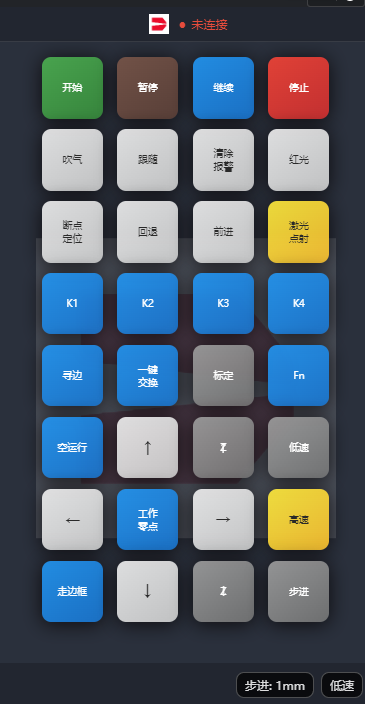
默认Logo样式
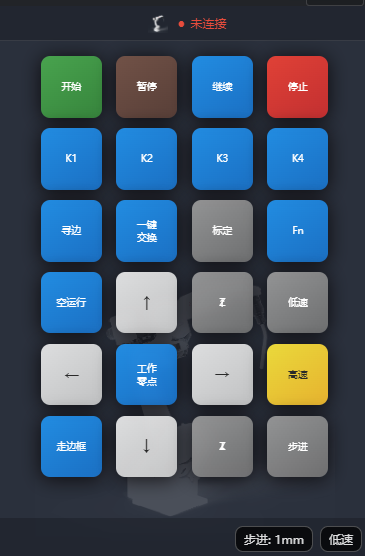
默认Logo样式
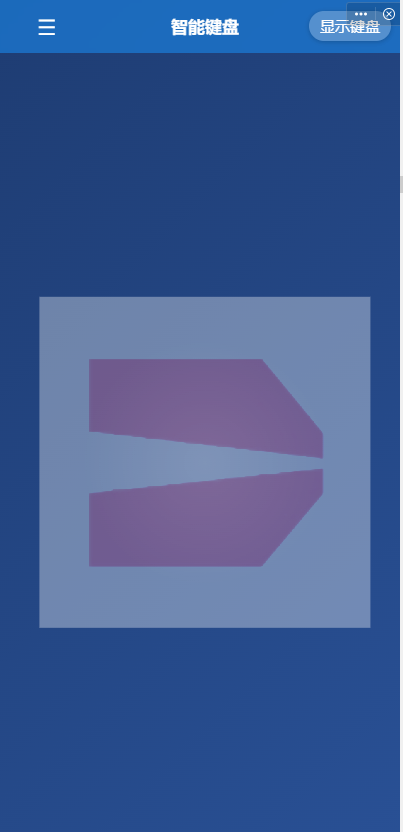
默认背景样式
经典深灰色,专业稳重
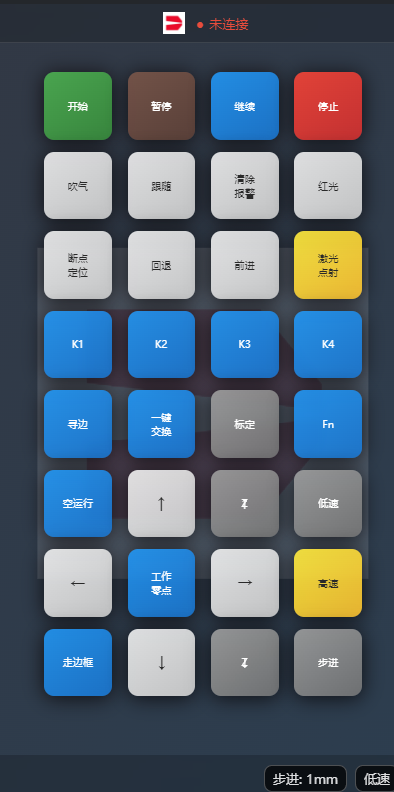
适合:通用工业设备、传统制造业、办公环境
蓝色科技感,现代简约
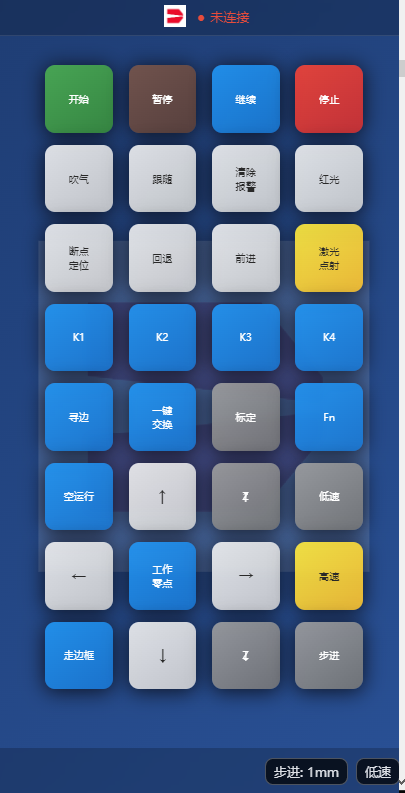
适合:精密制造、科技研发、自动化设备、电子行业
橙红工业感,稳重可靠
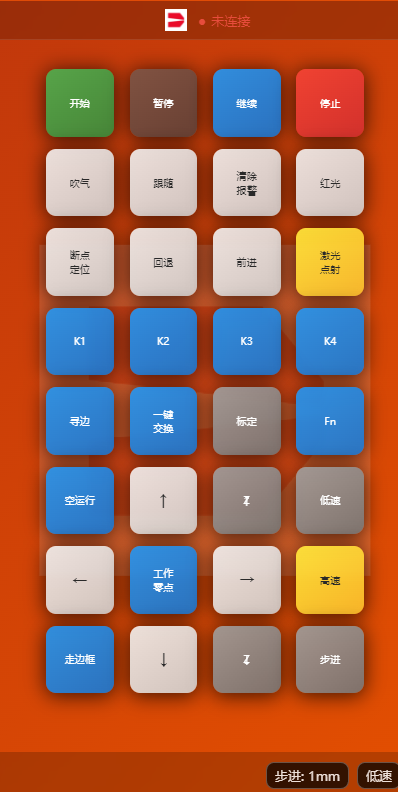
适合:重工业、机械加工、机器人控制、金属加工
自然绿色,环保节能
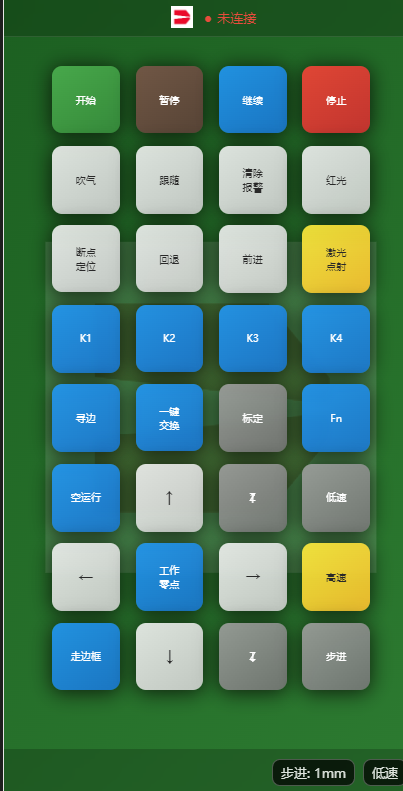
适合:环保设备、新能源、绿色制造、循环经济
紫色高端感,奢华品质
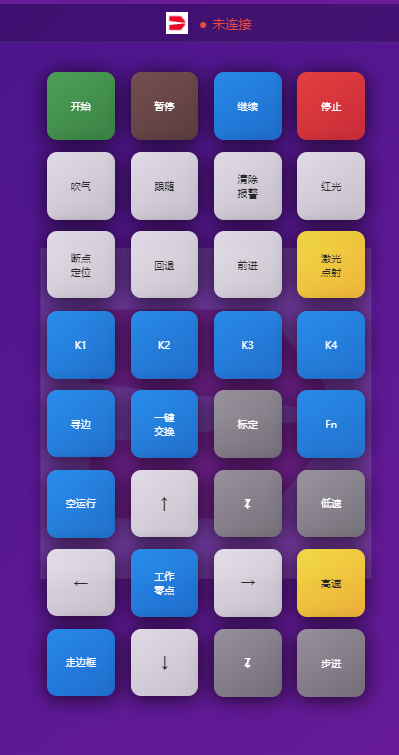
适合:高端制造、奢侈品加工、精密仪器、医疗设备
最重要的定制化步骤! 使用我们的可视化配置工具,您可以完全自由地定义每个按钮的位置、外观、功能和行为。 拖拽式操作,实时预览,无需编程基础。
点击进入可视化配置工具,开始您的按钮定制之旅
const AppConfig = {
  theme: {
    // 当前选择的主题
    currentTheme: 'premiumPurple',

    themes: {
      // 高端紫主题配置
      premiumPurple: {
        name: '高端紫',
        background: 'linear-gradient(135deg, #4a148c 0%, #6a1b9a 100%)',
        cardBackground: 'linear-gradient(145deg, rgba(156, 39, 176, 0.2), rgba(106, 27, 154, 0.15))',
        textPrimary: '#ffffff',
        textSecondary: '#e1bee7',
        accent: '#ba68c8',
        navbarBackground: 'rgba(106, 27, 154, 0.6)',
        overlayBackground: 'rgba(156, 39, 176, 0.3)'
      }
    }
  }
}// 按键布局配置
buttonLayout: {
gridColumns: 8,
gridRows: 4,
buttons: [
// 第一行 - 设备控制
{ text: '开始', type: 'green', action: 'start', icon: '▶️' },
{ text: '暂停', type: 'brown', action: 'pause', icon: '⏸️' },
{ text: '继续', type: 'blue', action: 'continue', icon: '⏯️' },
{ text: '停止', type: 'red', action: 'stop', icon: '⏹️' },
{ text: '吹气', type: 'white', action: 'blow', icon: '💨' },
{ text: '跟随', type: 'white', action: 'follow', icon: '👥' },
{ text: '清除\n报警', type: 'white', action: 'clearAlarm', icon: '🚨' },
{ text: '红光', type: 'white', action: 'redLight', icon: '🔴' },
// 方向控制按钮
{ arrow: true, type: 'white', rotation: 0, action: 'moveUp' },
{ zAxis: true, type: 'gray', rotation: 0, action: 'zUp' }
]
}config/app-config.js - 应用主配置文件,包含所有定制化选项
static/ - 存放Logo图片和其他静态资源
utils/configManager.js - 配置管理器,提供主题切换等功能
company-logo.png# 将Logo文件复制到项目目录
cp your-logo.png virtual-keyboard/static/
# 目录结构示例
virtual-keyboard/
├── static/
│ ├── your-logo.png # 您的Logo文件
│ ├── empower.png # 默认Logo
│ └── bg.jpg # 背景图片// 修改 config/app-config.js 文件
const AppConfig = {
app: {
name: '您的公司名称-智能键盘', // 修改应用名称
version: '1.0.0',
developer: '您的公司名称', // 修改开发者信息
description: '您的应用描述...', // 修改应用描述
releaseDate: '2024-01-01',
logo: '/static/your-logo.png' // 🔴 修改Logo路径
},
// ... 其他配置
}// 在 config/app-config.js 的 themes 对象中添加新主题
theme: {
currentTheme: 'yourCustomTheme', // 设置当前主题
themes: {
// 添加您的自定义主题
yourCustomTheme: {
name: '您的主题名称',
// 主背景渐变色
background: 'linear-gradient(135deg, #your-color1 0%, #your-color2 100%)',
// 卡片背景色
cardBackground: 'linear-gradient(145deg, rgba(r,g,b,0.2), rgba(r,g,b,0.15))',
// 主要文字颜色
textPrimary: '#ffffff',
// 次要文字颜色
textSecondary: '#your-secondary-text-color',
// 强调色(按钮等)
accent: '#your-accent-color',
// 导航栏背景色
navbarBackground: 'rgba(r,g,b,0.6)',
// 遮罩背景色
overlayBackground: 'rgba(r,g,b,0.3)'
},
// 示例:企业红主题
corporateRed: {
name: '企业红',
background: 'linear-gradient(135deg, #8B0000 0%, #DC143C 100%)',
cardBackground: 'linear-gradient(145deg, rgba(220, 20, 60, 0.2), rgba(139, 0, 0, 0.15))',
textPrimary: '#ffffff',
textSecondary: '#ffcccb',
accent: '#ff6b6b',
navbarBackground: 'rgba(139, 0, 0, 0.6)',
overlayBackground: 'rgba(220, 20, 60, 0.3)'
}
}
}// 修改 config/app-config.js 的 buttonLayout 配置
buttonLayout: {
gridColumns: 8, // 网格列数:调整键盘宽度
gridRows: 4, // 网格行数:调整键盘高度
buttons: [
// 🟢 文字按钮
{
text: '启动', // 按钮显示文字
type: 'green', // 按钮颜色类型
action: 'start', // 对应的动作名称
icon: '▶️', // 可选:显示图标
showFn: false // 可选:是否显示Fn标识
},
// 🔴 确认按钮(需要二次确认)
{
text: '急停',
type: 'red',
action: 'emergencyStop',
icon: '🛑',
confirmRequired: true // 需要确认对话框
},
// ➡️ 方向箭头按钮
{
arrow: true, // 标识为箭头按钮
type: 'white',
rotation: 0, // 旋转角度:0=上, 90=右, 180=下, -90=左
action: 'moveUp'
},
// 🔼 Z轴控制按钮
{
zAxis: true, // 标识为Z轴按钮
type: 'gray',
rotation: 0, // 0=向上, 180=向下
action: 'zAxisUp'
},
// 🔳 空白占位按钮
{ text: '', type: 'gray' } // 空白按钮用于布局调整
]
}green
启动/确认
red
停止/危险
blue
功能/操作
yellow
警告/注意
gray
普通/辅助
// 在 config/app-config.js 的 actionMappings 中定义按钮行为
actionMappings: {
  // 🔄 API调用类型 - 单次执行
  startMachine: {
    type: 'api',                        // 动作类型
    method: 'startMachine',             // 调用的API方法名
    successMessage: '设备启动成功',      // 成功提示消息
    confirmRequired: false,             // 是否需要确认
    confirmMessage: '确定要启动吗?'      // 确认对话框消息
  },

  // ⏯️ 持续动作类型 - 按住时执行
  moveUp: {
    type: 'continuous',                 // 持续动作类型
    startMethod: 'moveAxisUp',          // 按下时执行的方法
    stopMethod: 'stopAxis',             // 松开时执行的方法
    stopParams: [1],                   // 停止方法的参数
    successMessage: 'Y轴向上移动'
  },

  // 🔄 状态切换类型 - 开关状态
  highSpeedMode: {
    type: 'toggle',                     // 切换类型
    property: 'isRapidMode',            // 要切换的状态属性
    value: true,                        // 设置的值
    successMessage: '高速模式已开启'
  },

  // 📋 菜单显示类型 - 显示选项菜单
  stepSetting: {
    type: 'menu',                       // 菜单类型
    method: 'showStepMenu',             // 显示菜单的方法
    options: [                          // 菜单选项
      { text: '0.1mm', value: 0.1 },
      { text: '1mm', value: 1.0 },
      { text: '10mm', value: 10.0 }
    ]
  },

  // 🛠️ 自定义动作类型 - 自定义逻辑
  customFunction: {
    type: 'custom',                     // 自定义类型
    method: 'executeCustomLogic',       // 自定义方法名
    successMessage: '自定义功能执行完成',
    data: {                            // 传递给方法的数据
      param1: 'value1',
      param2: 'value2'
    }
  }
}// 修改 config/app-config.js 的 api 配置
api: {
// 基础配置
basePath: '/api/MachineControl', // API基础路径
timeout: 5000, // 请求超时时间(毫秒)
retryTimes: 3, // 重试次数
// 端点定义
endpoints: {
// 设备控制接口
controlMachine: '/ControlMachineStatus',
controlAxis: '/ControlAxisInchMove',
enableDriver: '/EnableDriver',
backZeroPoint: '/BackZeroPoint',
// 自定义接口 - 根据您的设备添加
customControl: '/YourCustomEndpoint',
deviceStatus: '/GetDeviceStatus',
emergencyStop: '/EmergencyStop'
},
// 请求配置
requestConfig: {
timeout: 5000,
retryTimes: 3,
retryDelay: 1000 // 重试延迟时间
},
// 限流配置
rateLimit: {
controlMachine: 5, // 每秒最多5次请求
controlAxis: 30, // 轴控制可以更频繁
default: 10 // 默认限制
}
}/**
* 您的公司名称 - 智能键盘配置文件
* 定制版本 v1.0.0
*/
const AppConfig = {
// 应用基本信息
app: {
name: '您的公司-智能键盘',
version: '1.0.0',
developer: '您的公司名称',
description: '专为您的公司定制的工业控制键盘',
releaseDate: '2024-01-01',
logo: '/static/your-company-logo.png'
},
// 主题配置
theme: {
currentTheme: 'yourCustomTheme', // 当前使用的主题
themes: {
// 🎨 默认主题配置
default: {
name: '默认主题',
background: 'linear-gradient(135deg, #323844 0%, #2c3e50 100%)',
cardBackground: 'linear-gradient(145deg, rgba(255,255,255,0.15), rgba(255,255,255,0.08))',
textPrimary: '#ffffff',
textSecondary: '#bdc3c7',
accent: '#3498db',
navbarBackground: 'rgba(0, 0, 0, 0.5)',
overlayBackground: 'rgba(128, 128, 128, 0.3)'
},
// 🎨 您的企业自定义主题
yourCustomTheme: {
name: '您的企业主题',
background: 'linear-gradient(135deg, #your-primary 0%, #your-secondary 100%)',
cardBackground: 'linear-gradient(145deg, rgba(r,g,b,0.2), rgba(r,g,b,0.15))',
textPrimary: '#ffffff',
textSecondary: '#your-text-color',
accent: '#your-accent-color',
navbarBackground: 'rgba(r,g,b,0.6)',
overlayBackground: 'rgba(r,g,b,0.3)'
}
},
// 按钮颜色配置
buttonColors: {
green: '#27ae60',
red: '#e74c3c',
blue: '#3498db',
yellow: '#f1c40f',
brown: '#8b4513',
gray: '#7f8c8d',
white: '#ecf0f1',
purple: '#9c27b0',
orange: '#ff5722',
teal: '#009688'
}
},
// 按键布局 - 根据您的设备定制
buttonLayout: {
gridColumns: 8,
gridRows: 4,
buttons: [
// 第一行 - 主要控制
{ text: '开始', type: 'green', action: 'start', icon: '▶️' },
{ text: '暂停', type: 'brown', action: 'pause', icon: '⏸️' },
{ text: '继续', type: 'blue', action: 'continue', icon: '⏯️' },
{ text: '停止', type: 'red', action: 'stop', icon: '⏹️' },
{ text: '吹气', type: 'white', action: 'blow', icon: '💨' },
{ text: '跟随', type: 'white', action: 'follow', icon: '👥' },
{ text: '清除\n报警', type: 'white', action: 'clearAlarm', icon: '🚨' },
{ text: '红光', type: 'white', action: 'redLight', icon: '🔴' },
// 第二行 - 断点定位和运动控制
{ text: '断点\n定位', type: 'white', action: 'breakpointPos', icon: '📍' },
{ text: '回退', type: 'white', action: 'backward', icon: '⏪' },
{ text: '前进', type: 'white', action: 'forward', icon: '⏩' },
{ text: '激光\n点射', type: 'yellow', action: 'laserPulse', icon: '⚡' },
{ text: 'K1', type: 'blue', action: 'k1', icon: '1️⃣' },
{ text: 'K2', type: 'blue', action: 'k2', icon: '2️⃣' },
{ text: 'K3', type: 'blue', action: 'k3', icon: '3️⃣' },
{ text: 'K4', type: 'blue', action: 'k4', icon: '4️⃣' },
// 第三行 - 功能按钮和方向控制
{ text: '寻边', type: 'blue', showFn: true, action: 'findEdge', icon: '🔍' },
{ text: '一键\n交换', type: 'blue', showFn: true, action: 'quickSwap', icon: '🔄' },
{ text: '标定', type: 'gray', action: 'calibrate', icon: '📐' },
{ text: 'Fn', type: 'blue', action: 'fn', icon: '⚙️' },
{ text: '空运行', type: 'blue', showFn: true, action: 'dryRun', icon: '🏃' },
{ arrow: true, type: 'white', rotation: 0, action: 'moveUp', icon: '⬆️' },
{ zAxis: true, type: 'gray', rotation: 0, action: 'zUp', icon: '🔼' },
{ text: '低速', type: 'gray', action: 'lowSpeed', icon: '🐌' },
// 第四行 - 方向控制和设置
{ arrow: true, type: 'white', rotation: -90, action: 'moveLeft', icon: '⬅️' },
{ text: '工作\n零点', type: 'blue', showFn: true, action: 'workZero', icon: '🎯' },
{ arrow: true, type: 'white', rotation: 90, action: 'moveRight', icon: '➡️' },
{ text: '高速', type: 'yellow', action: 'highSpeed', icon: '🚀' },
{ text: '走边框', type: 'blue', showFn: true, action: 'walkBorder', icon: '🔲' },
{ arrow: true, type: 'white', rotation: 180, action: 'moveDown', icon: '⬇️' },
{ zAxis: true, type: 'gray', rotation: 180, action: 'zDown', icon: '🔽' },
{ text: '步进', type: 'gray', action: 'step', icon: '📏' }
]
},
// 动作映射
actionMappings: {
// 设备控制
start: { type: 'api', method: 'startMachine', successMessage: '设备启动' },
pause: { type: 'api', method: 'pauseMachine', successMessage: '设备暂停' },
continue: { type: 'api', method: 'continueMachine', successMessage: '设备继续' },
stop: {
type: 'api',
method: 'stopMachine',
successMessage: '设备停止',
confirmRequired: true,
confirmMessage: '确定要停止设备吗?',
additionalActions: ['stopAllAxes']
},
// 运动控制
moveUp: { type: 'continuous', startMethod: 'moveAxisUp', stopMethod: 'stopAxis', stopParams: [1] },
moveDown: { type: 'continuous', startMethod: 'moveAxisDown', stopMethod: 'stopAxis', stopParams: [1] },
moveLeft: { type: 'continuous', startMethod: 'moveAxisLeft', stopMethod: 'stopAxis', stopParams: [0] },
moveRight: { type: 'continuous', startMethod: 'moveAxisRight', stopMethod: 'stopAxis', stopParams: [0] },
zUp: { type: 'continuous', startMethod: 'moveZAxisUp', stopMethod: 'stopAxis', stopParams: [2] },
zDown: { type: 'continuous', startMethod: 'moveZAxisDown', stopMethod: 'stopAxis', stopParams: [2] },
// 模式控制
highSpeed: { type: 'toggle', property: 'isRapidMode', value: true, successMessage: '高速模式' },
lowSpeed: { type: 'toggle', property: 'isRapidMode', value: false, successMessage: '低速模式' },
// 特殊功能
workZero: {
type: 'api',
method: 'backToOriginAll',
successMessage: '所有轴回原点',
confirmRequired: true,
confirmMessage: '确定要回原点吗?'
},
step: { type: 'menu', method: 'showStepMenu' },
// 自定义功能
blow: { type: 'custom', method: 'customBlow', successMessage: '执行吹气' },
follow: { type: 'custom', method: 'customFollow', successMessage: '执行跟随' }
},
// API配置
api: {
basePath: '/api/MachineControl',
endpoints: {
controlMachine: '/ControlMachineStatus',
controlAxisInchMove: '/ControlAxisInchMove',
controlAxis: '/ControlAxis',
enableDriver: '/EnableDriver',
backZeroPoint: '/BackZeroPoint',
health: '/api/health',
// 添加您的设备特定接口
customControl: '/YourCustomEndpoint',
deviceStatus: '/GetDeviceStatus'
},
requestConfig: {
timeout: 5000,
retryTimes: 3,
retryDelay: 1000
},
rateLimit: {
controlMachine: 5,
controlAxis: 30,
default: 10
}
},
// 默认设置
defaults: {
serverUrl: '',
deviceId: 'DEVICE_001',
timeout: 30,
stepDistance: 1.0,
isRapidMode: false
},
// 侧边菜单配置
sideMenu: {
items: [
{ text: '设置', icon: '⚙️', url: '../setting/setting' },
{ text: '关于', icon: 'ℹ️', url: '../about/about' }
]
},
// 功能开关
features: {
vibration: true,
soundFeedback: false,
connectionCheck: true,
autoSave: true,
debugMode: false,
customActions: true
}
}
module.exports = AppConfig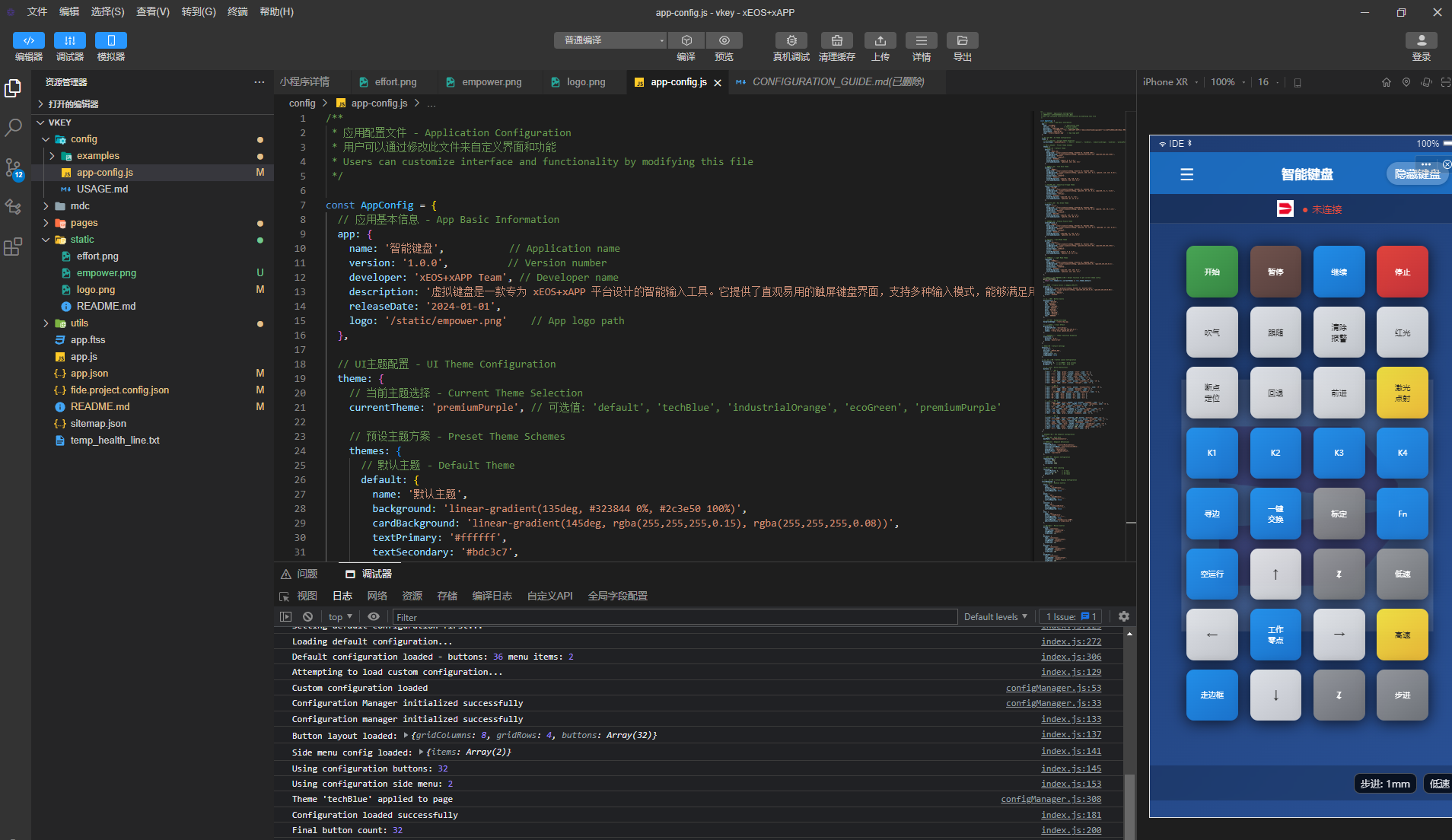
左侧文件树显示项目结构,config目录包含所有配置文件
中间代码编辑器支持语法高亮,实时预览配置效果
右侧模拟器实时显示键盘界面,支持交互测试
提示:在IDE中修改app-config.js文件后,右侧预览器会自动刷新显示新的配置效果,无需手动重启!
# 1. 打开睿制开元小程序IDE
# 导入您的键盘小程序项目

# 2. 在IDE中修改配置文件
config/app-config.js

# 3. 使用IDE内置模拟器测试
# - 实时预览界面效果
# - 测试按钮布局和主题
# - 验证自定义配置

# 4. 检查IDE控制台
# - 查看配置加载情况
# - 确认API连接状态
# - 调试功能逻辑# 1. 在IDE中打包小程序
# 点击"构建" -> "生产版本"
# 2. 上传到睿制开元平台
# - 登录睿制开元管理后台
# - 选择"小程序管理"
# - 点击"上传新版本"
# 3. 配置发布信息
# - 填写版本号和更新说明
# - 设置适用设备类型
# - 配置API端点地址
# 4. 发布到生产环境
# - 提交审核(如需要)
# - 推送到目标设备
# - 验证部署结果在IDE中直接可视化编辑按键布局,拖拽调整按钮位置和样式
支持多种设备分辨率的实时模拟,确保在不同屏幕上的显示效果
通过睿制开元平台,一键将小程序部署到目标工业设备
导入模板或新建项目
修改主题、按键、Logo
验证功能和界面
生成生产版本
推送到目标设备
macOS 10.14+ (支持 Intel 和 M1/M2)
小贴士:首次安装建议关闭防病毒软件,安装完成后可重新开启。如遇到权限问题,请以管理员身份运行安装程序。
语法高亮、自动补全、错误检测
多设备模拟器、热重载
断点调试、控制台日志
云端打包、设备推送
完整的项目源码和配置文件
文件大小:约 2MB | 最后更新:2024-12-01
下载vkey.zip文件并解压到本地目录
使用睿制开元IDE打开解压后的项目文件夹
参考本指南修改config/app-config.js文件
使用IDE模拟器预览效果并进行调试
构建生产版本并部署到目标设备
技术支持:如在使用过程中遇到问题,请联系我们的技术支持团队,我们将为您提供专业的开发指导和技术服务。